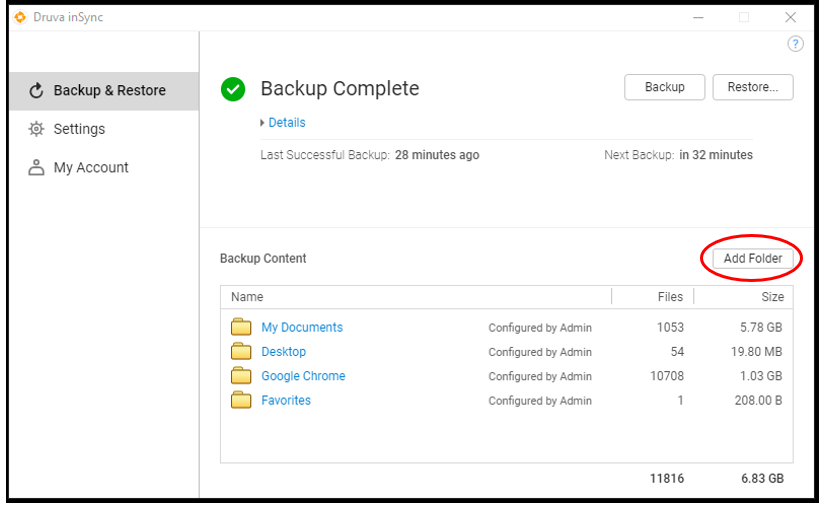
Before We Start: As of February 2021, Druva inSync automatically backs up four folders: My Documents, Desktop, Google Chrome, and Favorites. Reference this article if you have additional files/folders to backup.
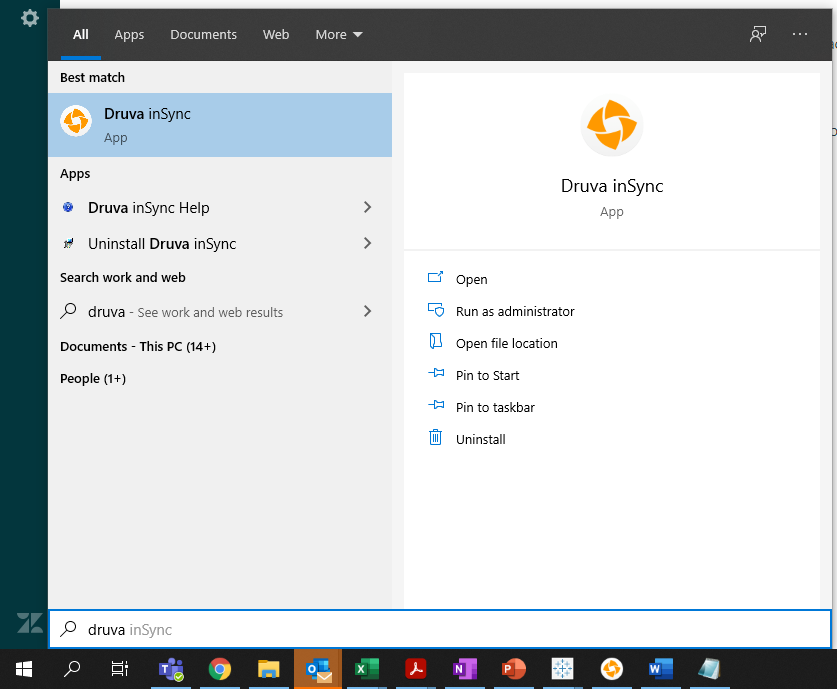
Step 1: Type "Druva" into your computer's search bar to show the portal. Click Druva inSync.
Step 2: Click Add Folder
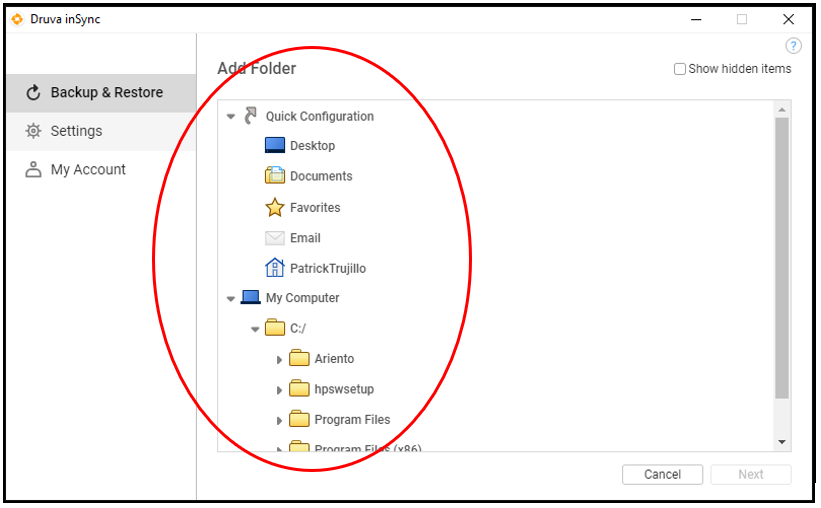
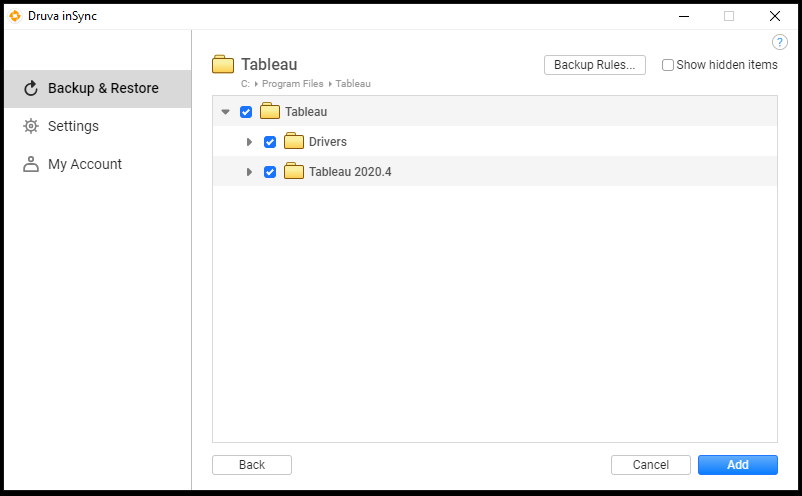
Step 3: Use this window to select the folder to be added to automatic Druva backups.
Step 4: Select the file you wish to add to automatic Druva backups and click Next
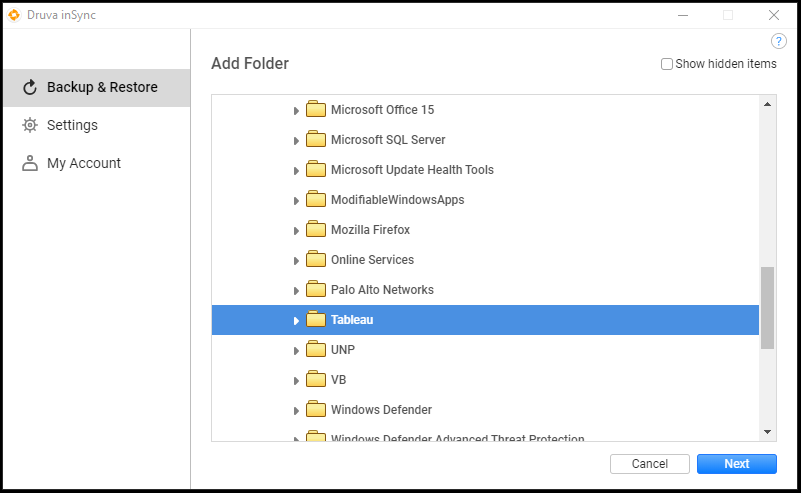
Step 5: Click Add
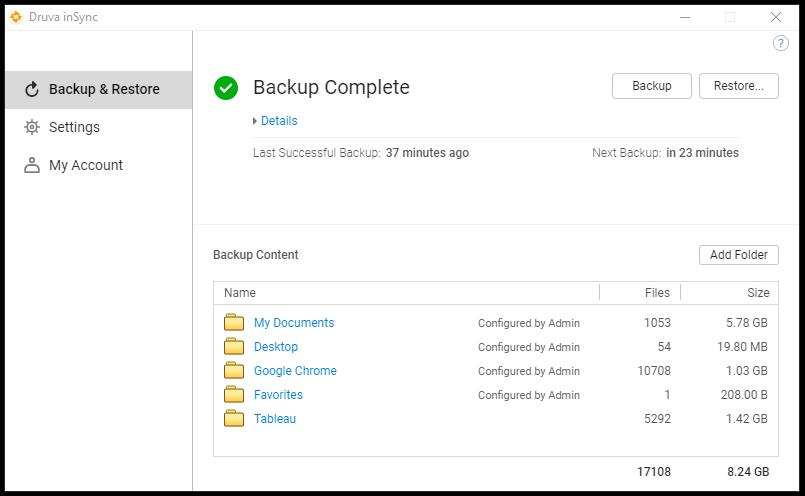
Step 6: Now the selected file appears under Backup Content in the Druva inSync homepage.
Comments
0 comments
Please sign in to leave a comment.